
C O N T E N T S
What’s New Updates in TallyPrime 7 & 7.1
1. Use Connected Banking in TallyPrime
1.1. Link Mobile Number to Tally.NET ID
1.2. Connect Bank Accounts with TallyPrime
1.2.1. Reconnect Bank Accounts
1.2.2. Disconnect Bank Accounts
1.3. Enable Online Payments for Bank Connection
1.4. Set Transaction Limits for Online Payments through a Bank Account
2. Set Up TallyPrime for e-Payments
2.1. Specify Transfer Mode for e-Fund Transfer Based on Amount
2.2. Configure Export of Payment Instructions
2.3. Bank-specific Configurations for e-Payments
3. Send Payments Online Using Connected Banking in TallyPrime
4. Send Payment Advice to Suppliers Using Connected Banking
5. Update/Check the e-Payments Status by Importing the Payment Reverse File
5.1. Set Status of e-Payments
5.2. Reset e-Payment Status
5.3. Update Payment Status for Online Payments
6. Get Bank Balance Using Connected Bank
7. Get Bank Statement Using Connected Bank
7.1. Delete Statement Request
7.2. Reset Bank Statement Data
8. Reconnect/Disconnect Bank
8.1. Reconnect Bank Accounts
8.2. Disconnect Bank Accounts
9. Log In/Log Out from Connected Banking
9.1. Log in to Connected Banking
9.1.1. Log in when the session is expired or inactive
9.2. Log Out from Connected Banking
9.3. Reset Connected Banking Login
9.4. Change Password for Connected Banking
10. Set up for Bank Reconciliation
10.1. Set Bank Reconciliation Beginning Date
10.2. Set/Alter Opening BRS
11. Import Bank Statements
1.1. Imported Bank Data Report
12. View Reports for Banking Utilities
12.1. Banking Activities Report
12.2. e-Payments Report
12.3. Bank Reconciliation Summary Report
12.4. Bank Reconciliation Report
13. Auto Reconciliation of Bank Transactions
13.1. Reconcile transactions with exact match
13.2. Select Transactions and Reconcile
13.3. Reconcile Transactions with Potential Match
13.4. Reconcile Transactions by Finding a Match
13.5. Reconcile Transactions with Partial Match
13.6. Unlink Transactions
14. Manual Reconciliation of Bank Transactions
14.1. Set Status for Transactions
15. Create Automated Vouchers
16. Backup Company Data to TallyDrive or Local Drive or Auto Backup
16.1. Schedule Backup of Company Data to TallyDrive | Auto Backup
16.2. Take Backup of Company Data to TallyDrive
16.3. Schedule Backup of Company Data to Local Drive | Auto Backup
16.4. Backup Now
16.5. Backup Log
16.6. Delete Backup Schedule
16.7. Alter Backup Schedule
17. Restore Backup Data in TallyPrime
18. Smart Find in TallyPrime – Search Like You Think
The Frustration We All Know
Smart Find: The Game Changer
18.1. Find Details Instantly
18.2 Include Similar Spellings
18.3. Include Contains Match
18.4. Include All or Any Keywords
18.5. Find in Specific Fields
18.6. Configure Results Display
18.7. Find Using AND, OR, NOT
18.8. Find Names with Equal To and Not Equal To
18.9. Find Numbers or Dates with Greater Than
19. Cancel e-Way Bill & e-Invoice and Cancel or Delete Voucher in TallyPrime
New Powers for E-Way Bills & E-Invoices
19.1. Cancel e-Way Bill, e-Invoice, & Voucher
Scenario 1: The 24-hours’ time limit has not exceeded for e-Way Bill and e-Invoice.
Scenario 2: The 24-hours time limit has exceeded for e-Way Bill and e-Invoice
Scenario 3: The 24-hours time limit has exceeded for e-Invoice and not for e-Way Bill
19.2. Cancel e-Way Bill, e-Invoice, & Delete Voucher
Scenario 1: The 24-hours time limit has not exceeded for e-Way Bill and e-Invoice.
Scenario 2: The 24-hours time limit has exceeded for e-Way Bill and e-Invoice
Scenario 3: The 24-hours time limit has exceeded for e-Invoice and not for e-Way Bill
19.3. Cancel e-Way Bill & e-Invoice and Retain the Voucher Using More Details
Scenario 1: The 24-hours time limit has not exceeded for e-Way Bill and e-Invoice.
Scenario 2: The 24-hours time limit has exceeded for e-Way Bill and e-Invoice.
Scenario 3: The 24-hours time limit has exceeded for e-Invoice and not for e-Way Bill.
20. Invoice Management System (IMS) in TallyPrime 7
21.1. Download IMS Inward Invoices
Automatically Accept Reconciled Vouchers in IMS
20.2. View IMS Inward Invoices
20.2.1. IMS Default View
20.2.2. IMS Reconciliation View
20.2.3. IMS Action View
20.3. Accept, Reject, or Keep ITC Pending | Set IMS Action Status
20.3.1. Change the GSTR Effective Date
20.3.2. Exclude Invoices from GSTR-3B
21. Upload IMS Inward Invoices
22. IMS – ITC Summary
23. Reset IMS Inward Action Status
24. Refresh GST Status of Vouchers
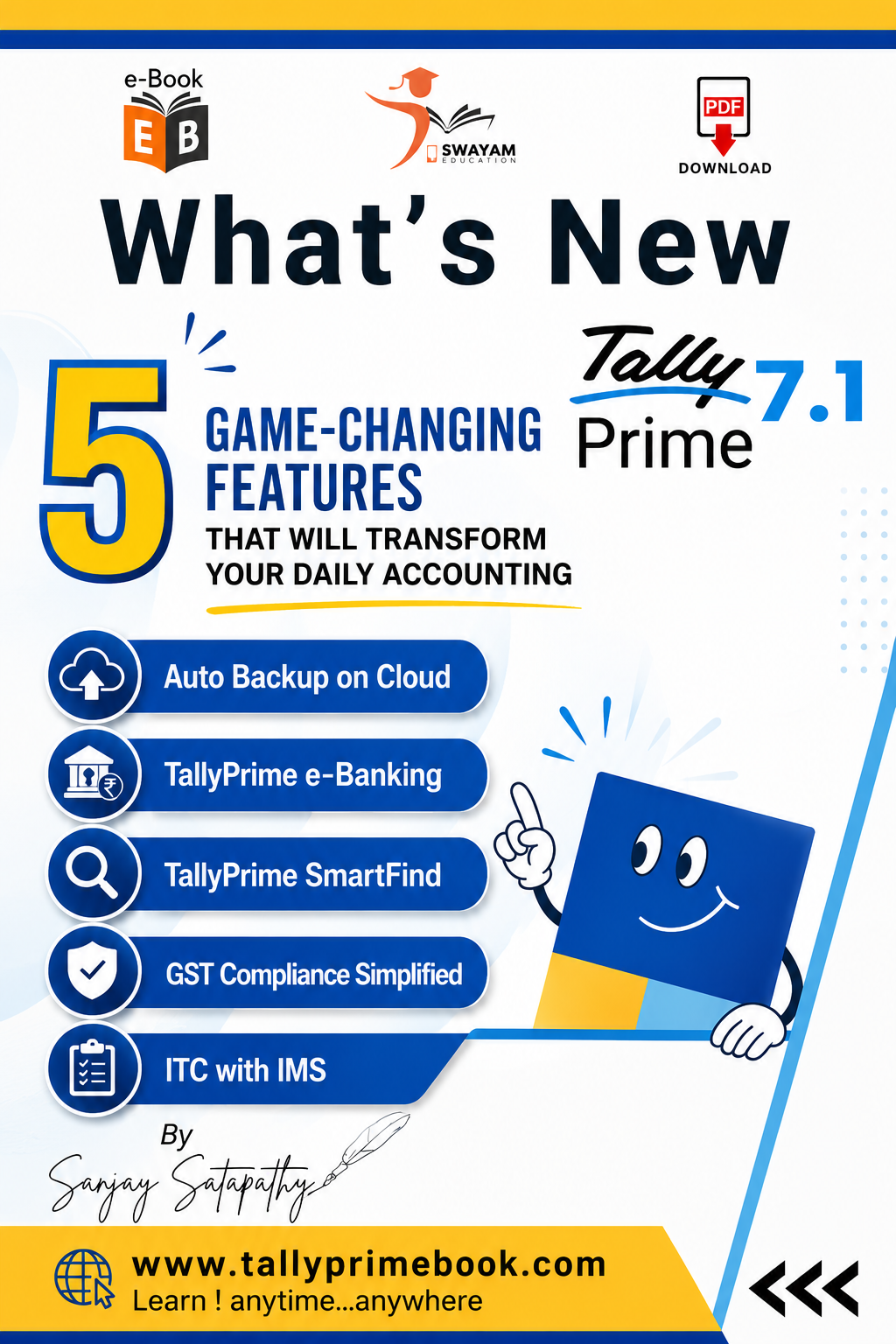
What’s New in Tally Prime 7.1 : 5 Game-Changing Features That Will Transform Your Daily Accounting
Feature 1: Invoice Customization (The Most Demanded Update)
How to Access the New Templates
Add or Remove Fields in the Invoice Templates
Copy Configurations
Adding Logos, Headers, and Watermarks
Edit Field Properties
Add Custom Fields
Print Settings
Save a Template
Set Template as Default
Include Terms and Conditions in Invoice Templates
Digital Signatures on Invoices
Feature 2: HSN List & Validation of Stock Items using Masters (No More Costly Errors)
One-Click HSN Validation for GSTR-1
Feature 3: Auto Text Wrapping in Masters, Vouchers & Reports (Readability Finally Fixed)
Feature 5: Amount-Wise Discount Columns

![TallyPrime 7.1 (Advanced Usage) e-Book (PDF)-[Covering 26 Chapters & 58 Assignments]-Download](https://tallyprimebook.com/wp-content/uploads/2025/01/TallyPrime-7-1-Advanced-Usage-e-Book-PDF-Front-Cover-300x400.jpg)
![TallyPrime 7.1-Sales Process of Goods and Services [e-Book (PDF)]-Download](https://tallyprimebook.com/wp-content/uploads/2023/12/TallyPrime-7-1-Sales-Process-of-Goods-and-Services-e-Book-PDF-300x400.jpg)